
Aadhaar Download 2026 – Download e-Aadhaar Online via UIDAI
Aadhaar is a 12-digit unique identification number issued by the Unique Identification Authority of India (UIDAI) to eligible residents of India. It is widely used for identity verification and accessing various government and private-sector services.
You do not always need to carry a physical Aadhaar card. UIDAI provides an online facility that allows you to download your electronic Aadhaar, also known as e-Aadhaar, in PDF format. You can Aadhaar download it using your Aadhaar Number, Enrolment ID (EID), Virtual ID (VID), or other supported identification details.
In this guide, you will learn how to download your Aadhaar card online through the UIDAI portal and other digital platforms. You will also find steps to check your Aadhaar enrolment status and understand the different Aadhaar services available online.
How to Download Aadhaar Card Using the UIDAI Portal?
The UIDAI website is the official platform for downloading your Aadhaar card online. You can use your Aadhaar Number, Enrolment ID (EID), or Virtual ID (VID) to access the download service.
Follow these steps for an Aadhaar download through the UIDAI portal:
Step 1: Visit the official My Aadhaar website.
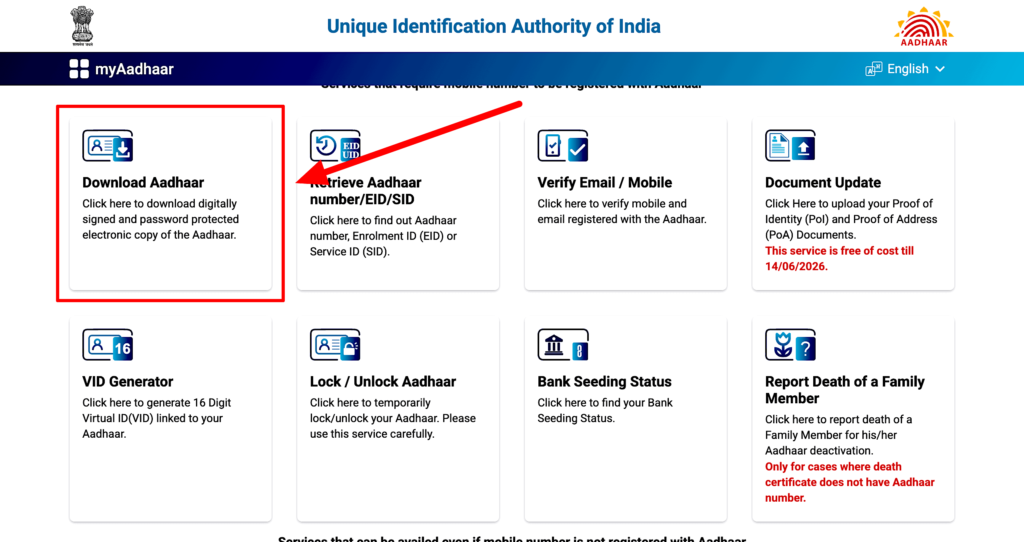
Step 2: Select the Download Aadhaar option from the available services.
Step 3: Choose the identification option available to you, such as Aadhaar Number, Enrolment ID (EID), or Virtual ID (VID).
Step 4: Enter the required number and the captcha/security code displayed on the screen.
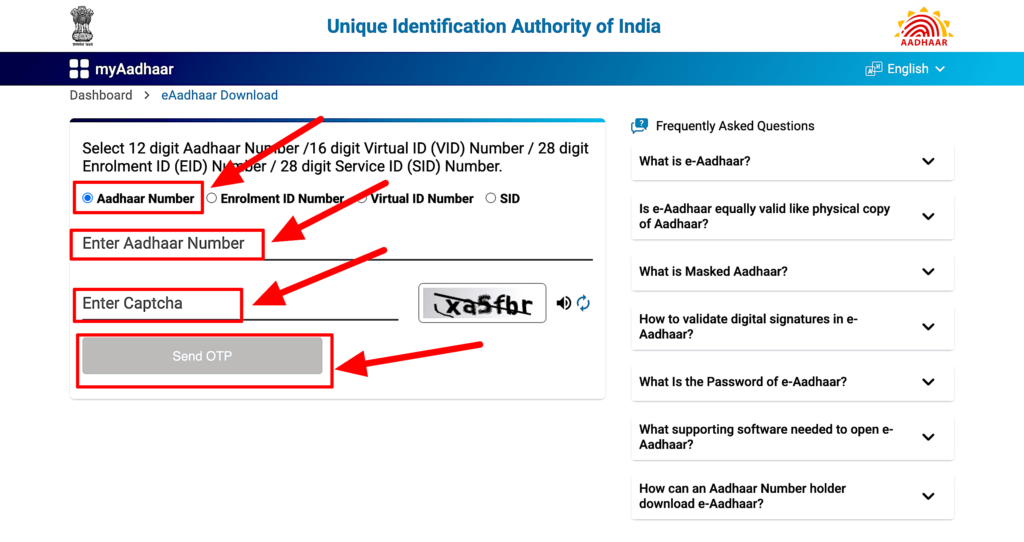
Step 5: Click on Send OTP. An OTP will be sent to your Aadhaar-registered mobile number. If the portal offers an alternative authentication method, you can use the available option.
Step 6: Enter the OTP and complete the verification process.
Step 7: Select Verify and Download to download your Aadhaar PDF.
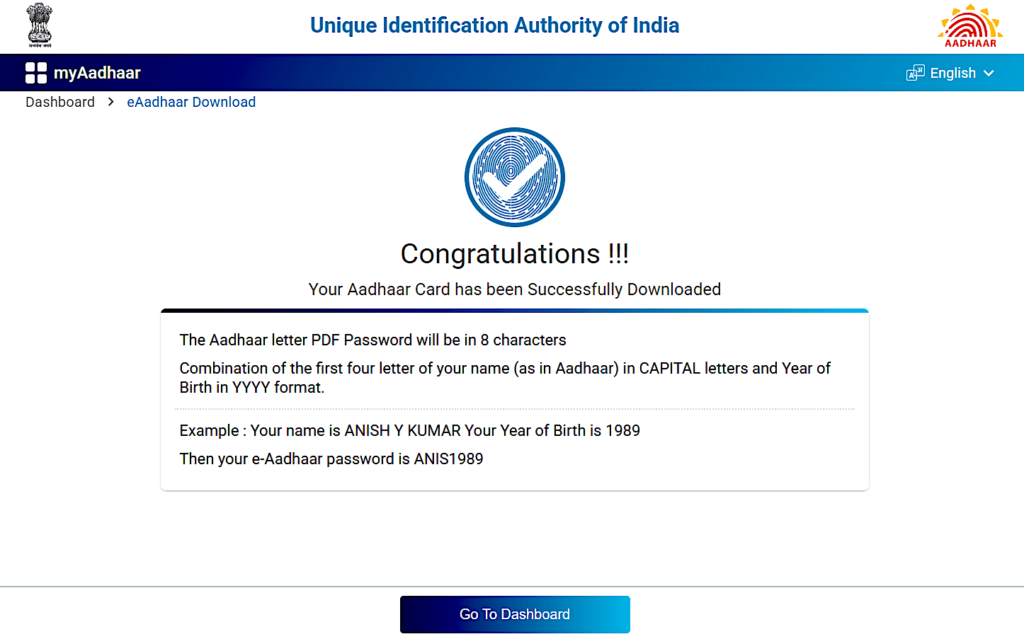
Your e-Aadhaar will be saved on your device. You can open the PDF using its password.
Important: Online Aadhaar downloads generally require access to the registered mobile number for OTP verification. If your mobile number is not registered with Aadhaar, visit an Aadhaar Enrolment Centre to get it registered.
What if you have forgotten your Aadhaar Number or EID?
If you cannot remember your Aadhaar Number or Enrolment ID, use the Retrieve EID/Aadhaar Number service on the official My Aadhaar portal. Enter the required details, such as your name and registered mobile number or email address, and complete OTP verification. If your details match UIDAI records, you can retrieve the required number.
How to Download Aadhaar Card Using the mAadhaar or Aadhaar App?
UIDAI provides mobile applications that allow residents to access Aadhaar-related services. The Aadhaar App and mAadhaar are separate applications, so make sure you download the official app from the Google Play Store or Apple App Store.
The official Aadhaar App also provides an e-Aadhaar download facility. Follow these general steps:
Step 1: Download the official Aadhaar App from the Google Play Store or Apple App Store.
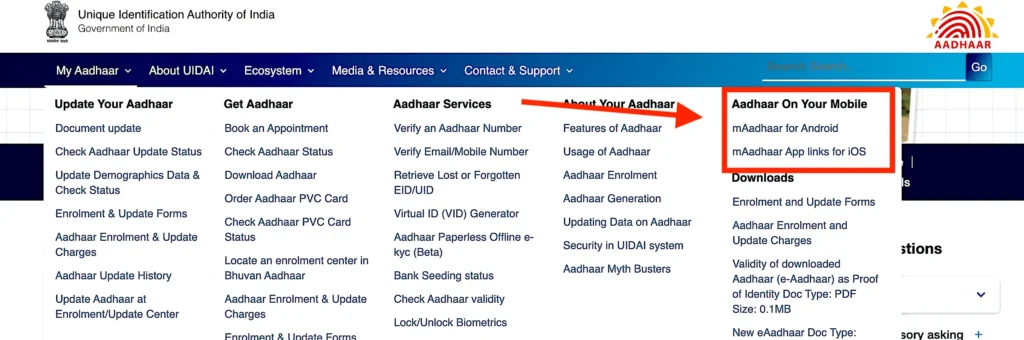
Step 2: Open the app and follow the registration instructions displayed on your screen.
Step 3: Complete the required authentication and set up your app access.
Step 4: Find the Download e-Aadhaar option in the available services.
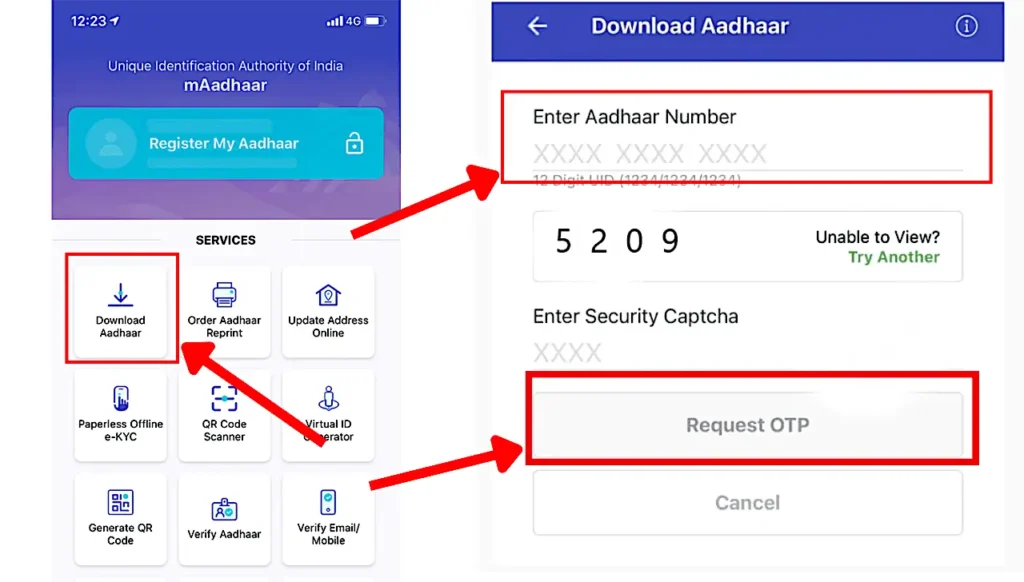
Step 5: Follow the instructions to enter or confirm the required Aadhaar details.
Step 6: Complete the authentication process and download your e-Aadhaar if the service is available for your account.
You can also use the mAadhaar app to access Aadhaar-related services. Depending on the available app features, you may use a Time-based OTP (T-OTP) for supported Aadhaar services.
Regular Aadhaar vs Masked Aadhaar
UIDAI provides an option to download a masked version of e-Aadhaar. The difference is:
- Regular e-Aadhaar: Displays the complete 12-digit Aadhaar number.
- Masked e-Aadhaar: Hides the first eight digits and displays only the last four digits.
Masked Aadhaar can be useful when you want to share an Aadhaar document while limiting the visibility of your Aadhaar number.
How to Download Aadhaar Card Through DigiLocker?
DigiLocker is a government-supported digital document platform where users can access and store documents issued by participating organisations. If Aadhaar is available in the Issued Documents section, you can access it through your DigiLocker account.
Follow these steps:
Step 1: Open the DigiLocker website or launch the DigiLocker mobile app.
Step 2: Sign in to your account using your registered login details. If you are a new user, complete the registration process.
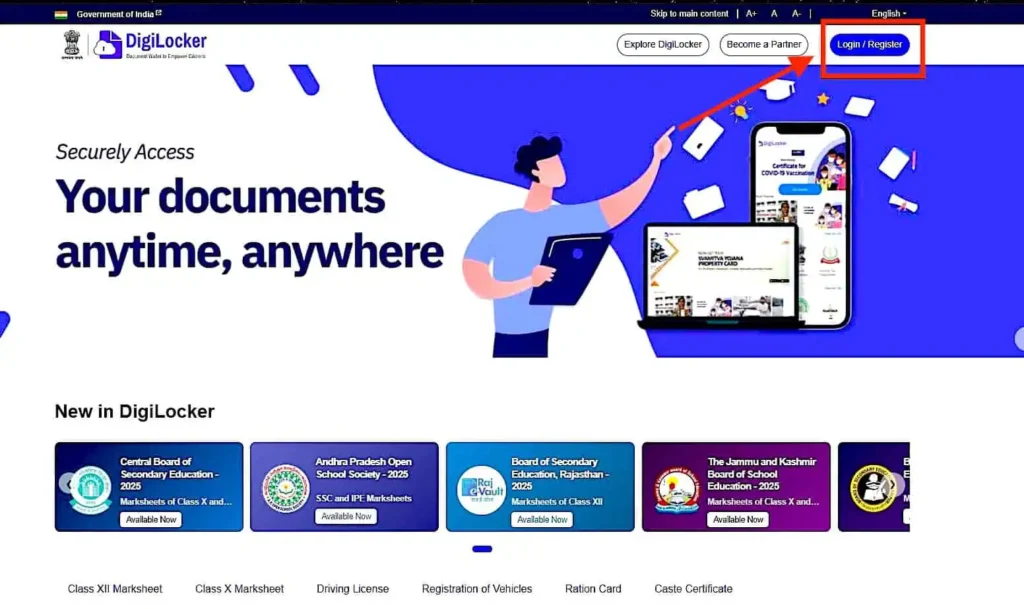
Step 3: After logging in, open the Issued Documents section or search for Aadhaar in the available services.
Step 4: Select the Aadhaar service, if available, and follow the instructions displayed on the screen.
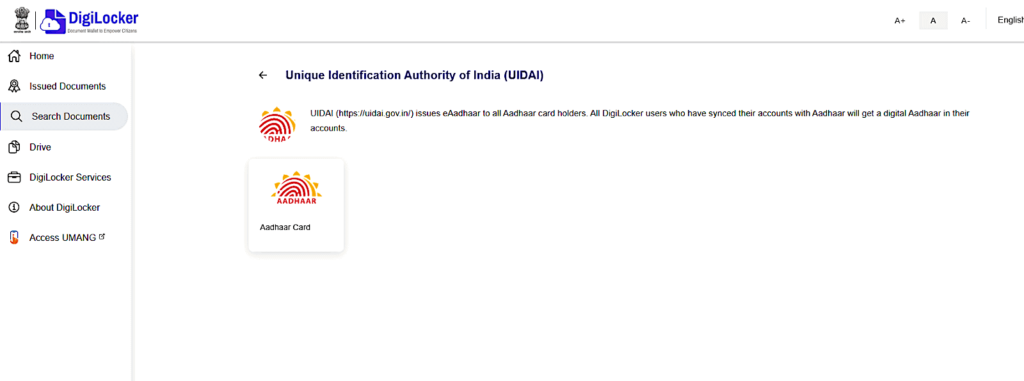
Step 5: Enter the required details and complete OTP verification, if requested.
Step 6: Once the document is fetched and issued to your account, open it from the Issued Documents section.
Step 7: Use the available download or save option to access the document on your device.
Note: The steps and available options may change as DigiLocker updates its services. If you cannot find Aadhaar in your account, use the official UIDAI My Aadhaar portal to download e-Aadhaar.
How to Download Aadhaar Card Through the UMANG Portal?
UMANG is a government-supported platform that provides access to various Central and State Government services. Aadhaar-related services may be available through the platform.
To check for Aadhaar services on UMANG, follow these steps:
Step 1: Visit the official UMANG website or open the UMANG mobile app.
Step 2: Sign in to your account. If you are a new user, register using the details requested by the platform.
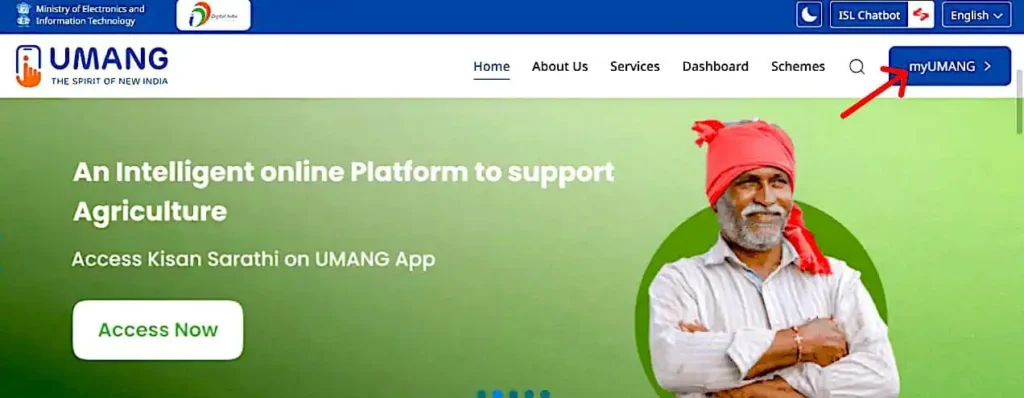
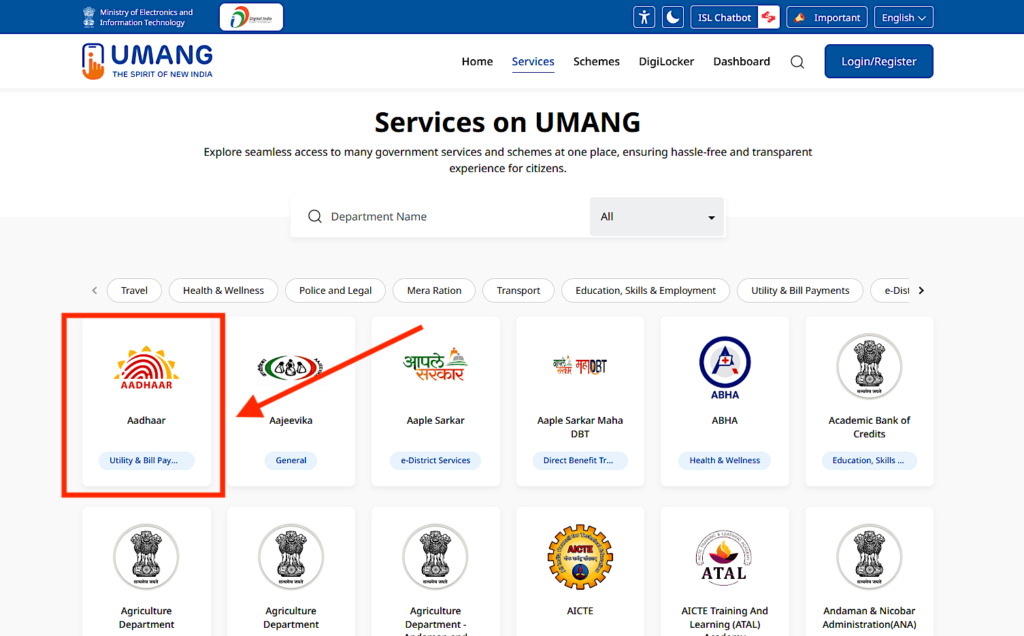
Step 3: Open the Services section and search for Aadhaar.
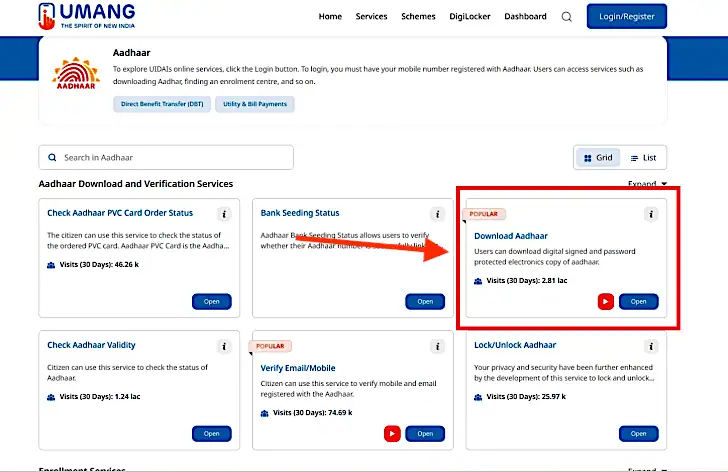
Step 4: Select the relevant Aadhaar service if it is listed.
Step 5: Read the instructions and enter the required details.
Step 6: Complete the verification process, such as OTP authentication, if requested.
Step 7: If the download facility is available, follow the on-screen instructions to access your Aadhaar document.
Note: The availability of individual Aadhaar services on UMANG may change. For the most direct and reliable download process, use the UIDAI My Aadhaar portal.
How to Check Aadhaar Card Enrolment Status?
After applying for a new Aadhaar card, you can check whether your Aadhaar number has been generated by using the official UIDAI website.
Follow these steps to check Aadhaar application status:
Step 1: Visit the official Check Aadhaar Status page.
Step 2: Enter the details requested on the page, such as your Enrolment ID (EID) or other supported request reference.
Step 3: Enter the captcha/security code displayed on the screen.
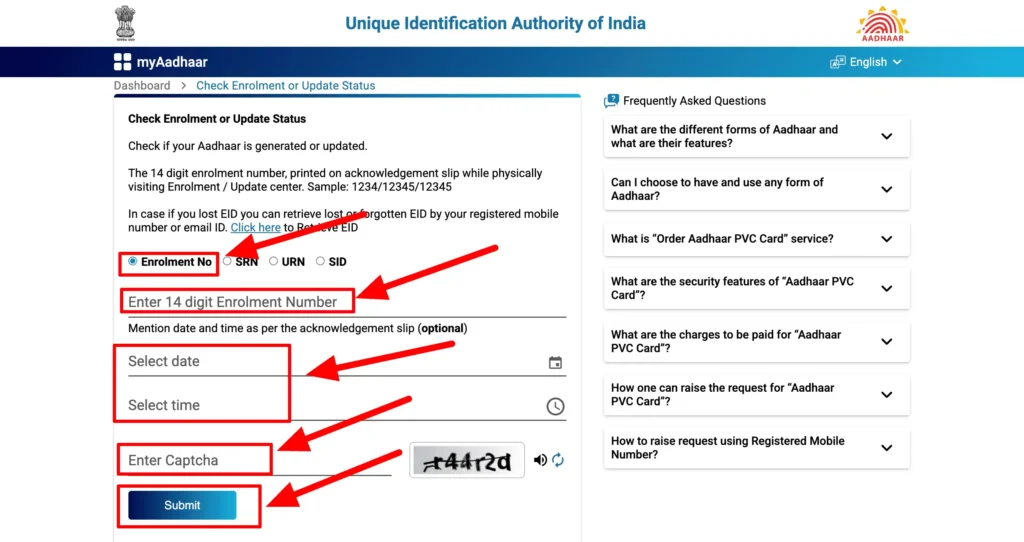
Step 4: Click on the Submit or Check Status option.
Step 5: Your current Aadhaar enrolment status will appear on the screen.
If your Aadhaar has been generated successfully, you can use the UIDAI download facility to get your e-Aadhaar PDF.
Where can you find your Enrolment ID?
Your Enrolment ID is printed on the acknowledgement slip provided after completing Aadhaar enrolment. Keep this slip safe because it contains the information required to check your application status.
What Is e-Aadhaar?
e-Aadhaar is the electronic version of an Aadhaar card issued and digitally signed by UIDAI. It is available as a password-protected PDF file that residents can download through the official UIDAI portal and supported digital platforms.
e-Aadhaar contains the Aadhaar holder’s relevant identity details and can be used as a valid form of Aadhaar. According to UIDAI, e-Aadhaar is equally valid as the physical Aadhaar letter.
You can download e-Aadhaar using your Aadhaar Number, Enrolment ID (EID), Virtual ID (VID), or other supported details.
What Is the Password for an e-Aadhaar PDF?
The downloaded e-Aadhaar PDF is password-protected. To open it, use the password format provided by UIDAI:
First four letters of your name in CAPITAL letters + Year of Birth (YYYY)
For example:
| Name | Year of Birth | PDF Password |
|---|---|---|
| RAHUL KUMAR | 1995 | RAHU1995 |
| PRIYA SHARMA | 1998 | PRIY1998 |
| AMIT | 1990 | AMIT1990 |
If your name has fewer than four letters, use the available letters of your name followed by your birth year.
What Are the Uses of an Aadhaar Card?
Aadhaar is used for identity verification and accessing a range of services in India. Its uses depend on the requirements of the organisation or service provider.
Some common uses include:
- Identity Verification: Aadhaar can be used as proof of identity when accepted by the concerned organisation.
- Banking Services: Banks and financial institutions may use Aadhaar for identity verification and permitted KYC processes.
- Government Schemes: Aadhaar may be used for beneficiary identification and Direct Benefit Transfer (DBT), where applicable.
- PAN-related Services: Aadhaar is used for PAN-Aadhaar linking as required under applicable income-tax rules, subject to exemptions.
- Pension and Social Benefits: Aadhaar-based authentication may be used for accessing certain pension and welfare services.
- Digital Verification: Aadhaar authentication and offline verification can help service providers verify identity.
- Education and Employment: Aadhaar may be accepted for identity verification where permitted and required by the relevant authority.
Important: Aadhaar is not automatically mandatory for every service listed above. Requirements depend on applicable laws, government rules, and the service provider’s process.
Types of Aadhaar Services Available Online
UIDAI provides several online services through the My Aadhaar Portal and its official mobile applications. These services help residents download documents, update eligible details, check request status, and manage Aadhaar security.
Some important Aadhaar services include:
- Aadhaar Download: Download your e-Aadhaar Card PDF using supported identification details.
- Aadhaar Update: Update eligible demographic details online or find information about visiting an Aadhaar centre for other updates.
- Aadhaar PVC Card: Order a physical PVC Aadhaar card through the official UIDAI portal.
- Check Aadhaar Status: Track the status of enrolment and supported update requests.
- Retrieve Aadhaar Number: Retrieve a forgotten Aadhaar Number or Enrolment ID through the available UIDAI service.
- Generate Virtual ID: Generate a 16-digit Virtual ID (VID) that can be used instead of the Aadhaar number for supported authentication.
- Lock or Unlock Biometrics: Manage biometric locking to help protect fingerprint and iris authentication.
- Verify Aadhaar: Check the validity of an Aadhaar number through UIDAI’s verification service.
- Verify Mobile Number or Email: Check whether a mobile number or email address is verified with Aadhaar.
For these services, always use the official UIDAI website or authorised applications.
The Bottom Line
Downloading an Aadhaar card online is simple with the services provided by UIDAI. You can use the My Aadhaar portal to download your e-Aadhaar PDF with your Aadhaar Number, Enrolment ID, Virtual ID, or another supported option.
You can also access Aadhaar-related services through official mobile applications and supported digital platforms. If you have recently applied for Aadhaar, use the UIDAI website to check your enrolment status before attempting to download the document.
Remember to keep your registered mobile number accessible for OTP verification and protect your Aadhaar details when sharing documents online. For accurate information and official services, always refer to the UIDAI website.